
Docs
Choose your preferred AI platform and authentication method to get started with Agentsfera.
Gemini CLI
Integrate Agentsfera with Gemini CLI
Google's Gemini CLI brings powerful AI capabilities directly to your terminal. By connecting Agentsfera to Gemini CLI, you enable your AI assistant to access live data from 500+ business tools, databases, and APIs - transforming it into a context-aware assistant for your workflows.
Why Integrate Gemini CLI with Agentsfera?
- Real-Time Context: Access Jira tickets, GitHub issues, Confluence documentation, and Azure DevOps work items directly in your terminal.
- One-Command Setup: Install with a single CLI command - no complex configuration needed.
- Terminal-First Workflow: Use Agentsfera's tools without leaving your command line environment.
- Zero Configuration: No manual MCP server setup required - Agentsfera manages all infrastructure and integrations for you.
Step 1: Add MCP Server
gemini mcp add --scope user agentsfera npx -y mcp-remote https://api.agentsfera.aiStep 2: Open Gemini CLI
This opens the Gemini CLI interface. You're now ready to start using Agentsfera tools.
Step 3: Authenticate with Agentsfera
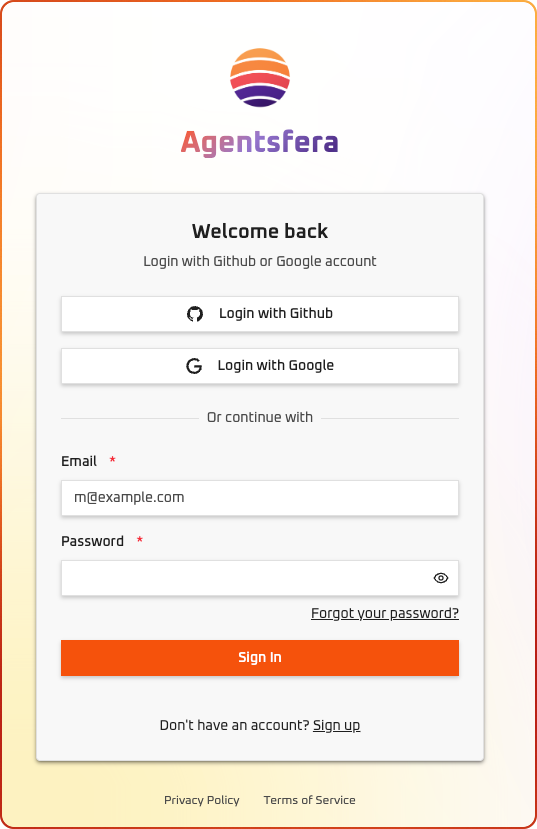
A browser window will open automatically for authentication
Login to your account:
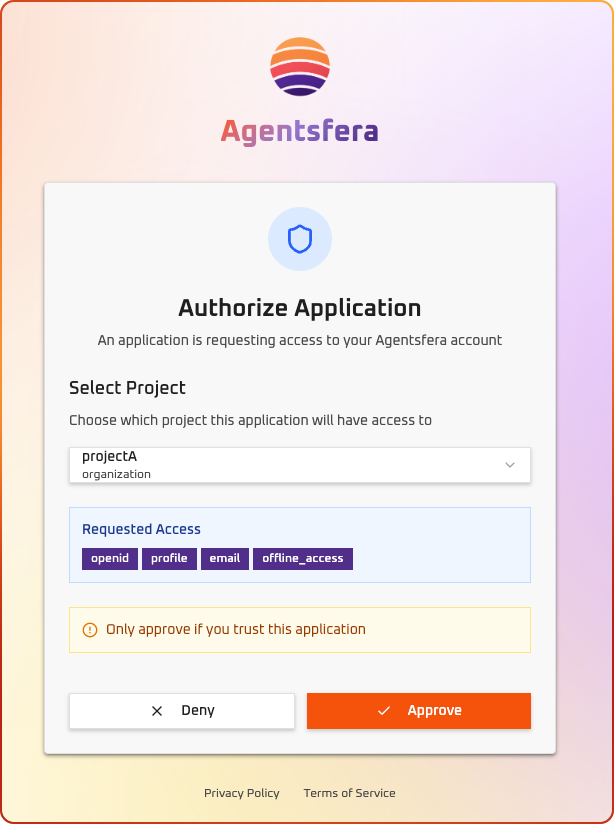
Grant access to Gemini CLI:
Step 4: Verify Connection
After successful authentication, return to Gemini CLI and check your configured MCP servers:
Success! Agentsfera is now connected and ready to use in Gemini CLI.
Step 5: Start Using Agentsfera
🎉 All set! You now have access to all Agentsfera tools in Gemini CLI.
Example Usage
You:
"Search documents for the quarterly report template"
💡 Tip: You can ask natural questions about your connected services and Agentsfera will automatically use the right tools.